If you used Annotation Edit to spot subtitles against a video or waveform, you need more than a generic “modern editor.” You need to know which parts of your workflow carry over. SubEasy is a Mac subtitle editor for reviewing and editing subtitle files, adjusting cue timing, and adding AI transcription and translation to the process. It can be a useful alternative for those tasks, but it is not a one-for-one replacement for every specialized Annotation Edit workflow.
Need a Mac subtitle editor for standard subtitle files?
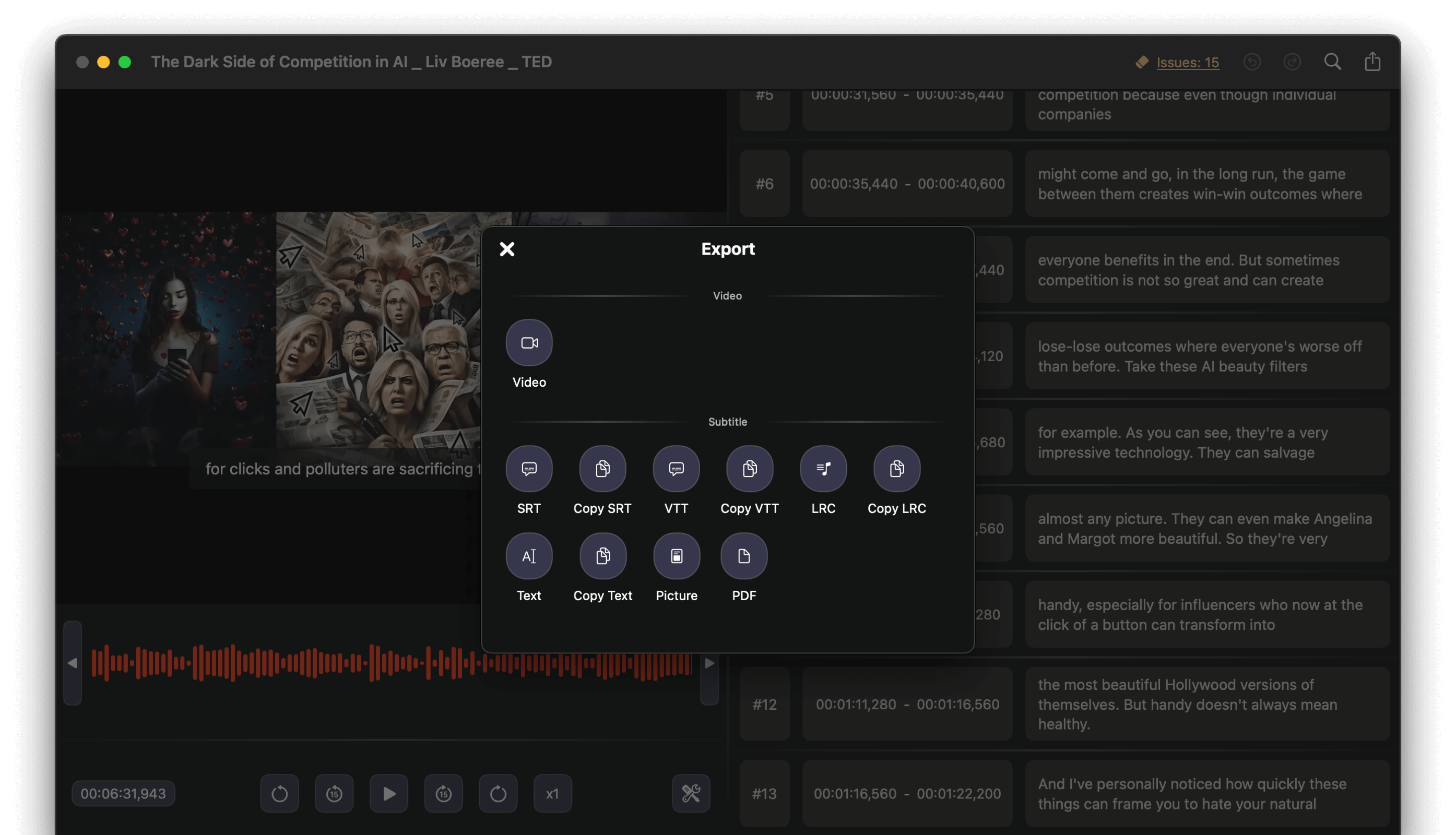
SubEasy edits SRT, WebVTT, and LRC, with video preview, waveform context, and subtitle timing controls.
What happened to Annotation Edit?
Annotation Edit is still listed on the zeitAnker latest versions page. The vendor lists Annotation Edit 2.0.123 with release notes dated May 10, 2023, as well as a separate Apple Silicon build (2.1.6). So it is more accurate to check the current download, license, and macOS compatibility for your setup than to assume the product has been discontinued.
Annotation Edit has professional workflows that matter to some users, including waveform-based spotting, native timecode offsets, and Final Cut Pro XML export. If you rely on those features, compare your exact delivery requirements before switching. zeitAnker documents its Final Cut Pro and timecode workflows here.
Annotation Edit vs. SubEasy
The right choice depends on the files you exchange and where the subtitles go next. This table focuses on capabilities documented by each product; it does not imply that project files or application-specific metadata move between them.
| Workflow | Annotation Edit | SubEasy |
|---|---|---|
| Subtitle file editing | Supports professional subtitle and caption workflows; available formats depend on the version and export path you use. | Edits SRT, WebVTT, and LRC; exports SRT, VTT, and LRC subtitle files. |
| Video and waveform review | Waveform spotting and audio scrubbing are documented by zeitAnker. | Shows video, subtitle cues, and an audio waveform together while you review your work. |
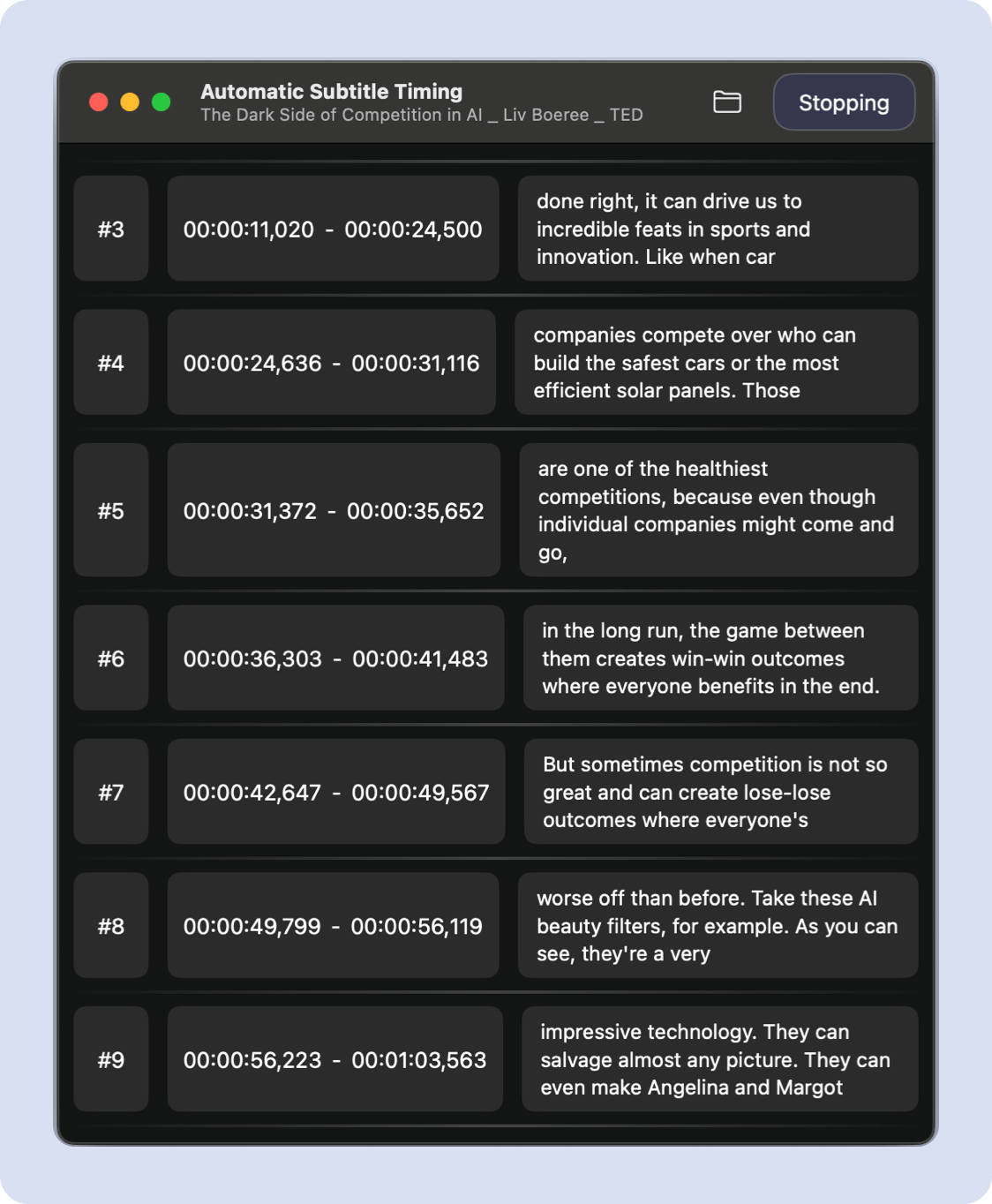
| Timing work | Includes native timecode-offset and frame-based time-remapping workflows. | Lets you review cue timings and use automatic subtitle timing; check generated cues against your source. |
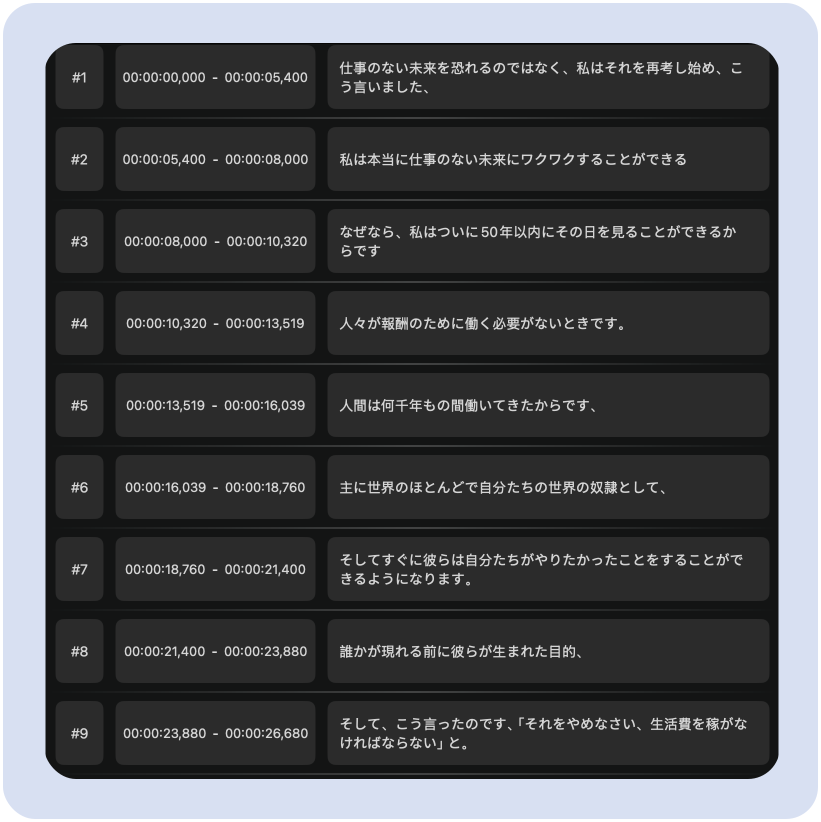
| AI transcription and translation | Not the focus of its documented subtitle-editing workflows. | Adds AI subtitle generation and subtitle translation alongside editing. |
| Final Cut Pro handoff | zeitAnker documents Final Cut Pro XML workflows. | Standard subtitle file export is documented; do not assume it replaces an Annotation Edit to Final Cut Pro XML handoff. |
| Offline use | Check the requirements for your installed version and workflow. | The App Store listing describes offline transcription with on-device models. Check the requirements for translation and other features separately. |
Before you switch: keep your original Annotation Edit project, and test a copy of a representative subtitle file in SubEasy. Standard subtitle exports carry the data their format supports; they do not guarantee transfer of Annotation Edit project structure, track organization, custom metadata, or timecode offsets.
What you can do with SubEasy
SubEasy focuses on a connected create, review, edit, and export workflow. Import an existing subtitle file or generate subtitles from media, then review the text and cue times alongside the video before exporting a subtitle file.
- Edit common subtitle files: open SRT, WebVTT, and LRC files, then export subtitle tracks in SRT, VTT, or LRC.
- Review timing in context: use the video preview, cue list, and waveform to inspect and adjust subtitles.
- Generate and translate: create subtitles with AI, then translate and edit the result in the subtitle workflow.
- Check readability: review cue length, overlaps, and timing before delivery.
See the subtitle editor and supported file formats or read about generating and exporting subtitles.

How to move existing subtitle files to SubEasy
You do not need to recreate every subtitle from scratch if you can export a supported sidecar file. Use this small test migration first:
- In Annotation Edit, export or locate a copy of the subtitle track in SRT, WebVTT, or LRC, if available in your workflow.
- Open that subtitle file in SubEasy and confirm that the text and cue sequence look right.
- Check several start and end times against the original video, especially near the beginning, end, and any source timecode offset.
- Review line breaks, styling, speaker labels, and any special metadata your delivery requires.
- Export a new subtitle file and test it in the player or editing application where it will be used.
A subtitle file is not the same as an Annotation Edit project. Preserve the original project and compare the exported result before moving a production workflow. If your delivery depends on Final Cut Pro XML, frame-based timecode, or a specialized caption format, verify that handoff separately.
Questions from Annotation Edit users
Can SubEasy open an Annotation Edit project file?
The product materials here document subtitle-file editing for SRT, WebVTT, and LRC, not direct import of Annotation Edit project files. Export a supported subtitle file and test it with a copy of your media.
Will my timecode offsets and project metadata transfer?
Do not assume they will. A standard subtitle file can carry cue text and timing, but it may not preserve application-specific project structure or source timecode offsets. Compare the exported file with the original before relying on it.
Can I keep using a Final Cut Pro XML workflow?
Annotation Edit documents a Final Cut Pro XML workflow. SubEasy's documented handoff is through subtitle files, so keep your existing XML path or test another workflow if editable Final Cut Pro titles are required.
Can I use SubEasy fully offline?
The App Store listing describes offline transcription with on-device models. Check connectivity requirements for translation and other features separately before switching an offline workflow.
A modern subtitle editor for Mac
Use SubEasy to edit standard subtitle files, review timing with video and waveform context, and add AI subtitle generation and translation when they fit your workflow.
